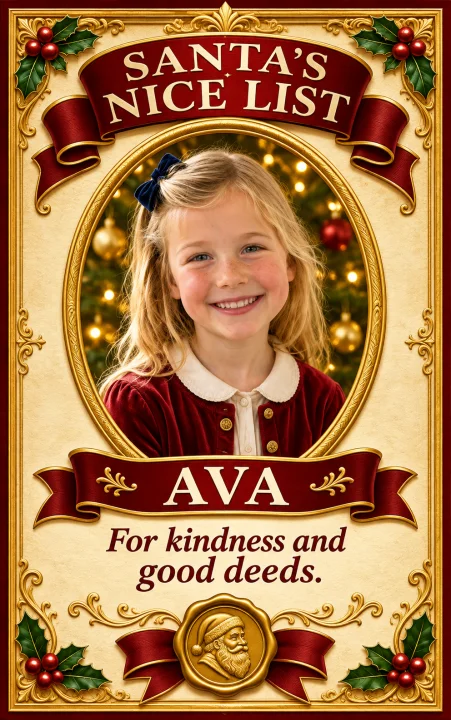
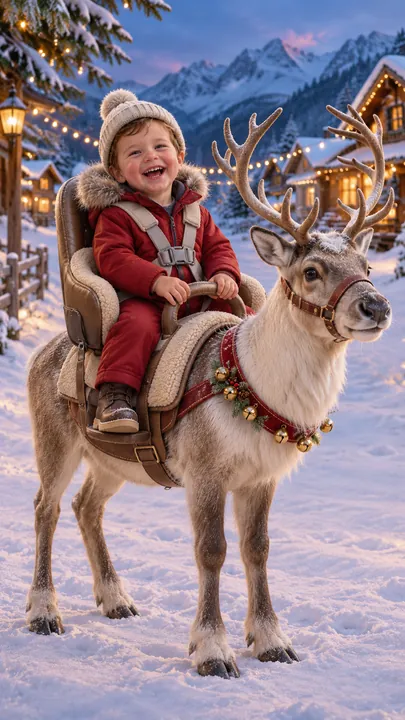
Christmas photo ideas for your own photo
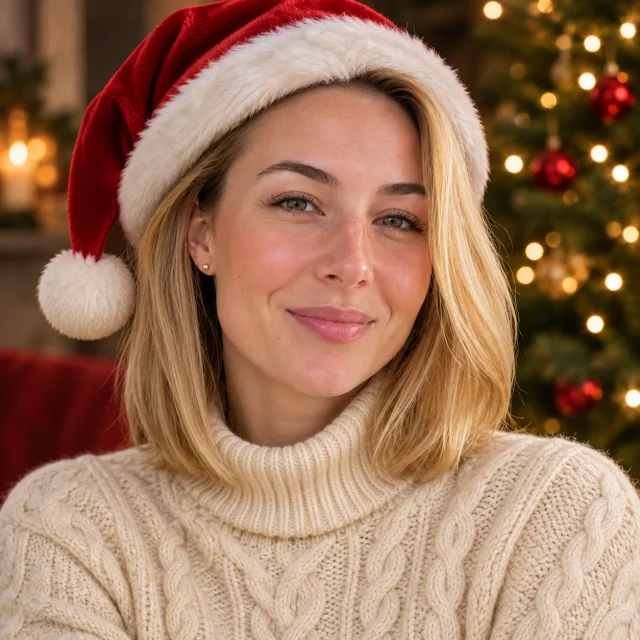
Christmas PFP
Santa hat
Make it
Christmas photo ideas for your own photo
Explore ten Christmas photo ideas in PopFestive, then click Make it to open a matching scene, upload your photo and create a holiday portrait. Choose couples, kids, pets, pajamas, tree lights or snow.
1Upload your photo
Use a clear, well-lit photo with one face visible.
Tip: drag photos onto the boxes, or paste one with Ctrl+V (⌘V).
2Pick your Christmas effect
3Choose quality & format
Add a name or Christmas details, or leave this empty to use the selected style.
This Christmas photoshoot: 10 credits · 100 credits a month for $29.90, or 400 a year for $100
By creating, you confirm you have permission to use the uploaded photos. Terms of Service
A still image uses 5 credits at 1K or 10 credits at the default 2K quality.
Updated
Choose from ten Christmas photo ideas, then click Make it to open the matching scene in a studio. People scenes use one photo containing everyone; pet portraits use one photo per animal, with up to two pets. The photoshoot scenes open here with the scene description filled in. Pet, Santa and profile-picture cards open their matching tools. A still image uses 5 credits at 1K or 10 at the default 2K quality. Check the selection before creating.
Pick your scene
Each image and Make it link opens the matching scene. Add your own photo after choosing.
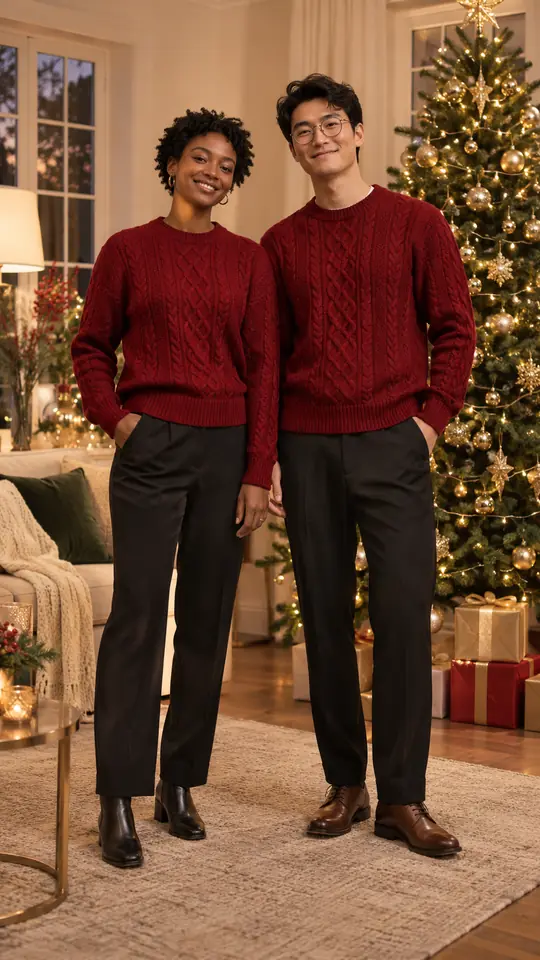
Red knits and gold lights. Upload one photo showing both people together.
Make it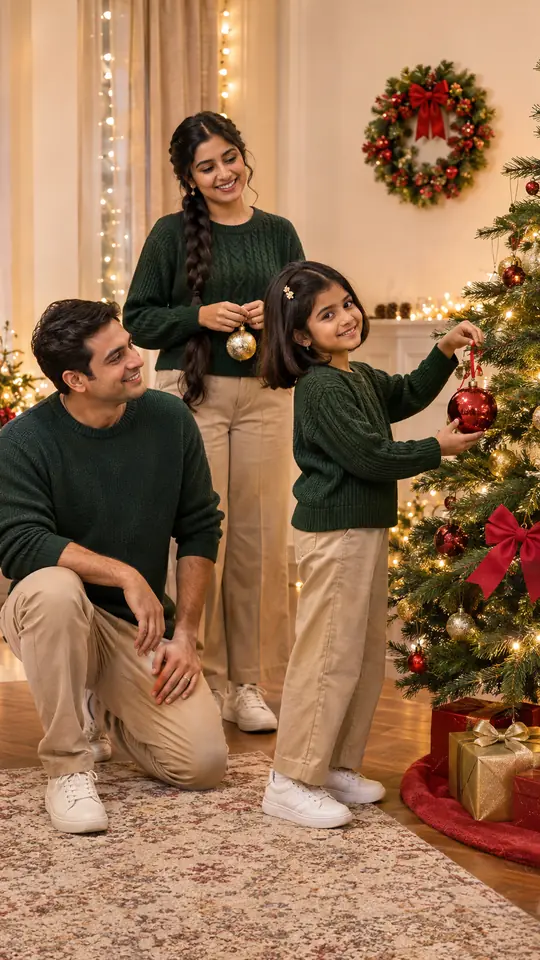
Parents and one child in green knits. Give little hands an ornament to focus on.
Make it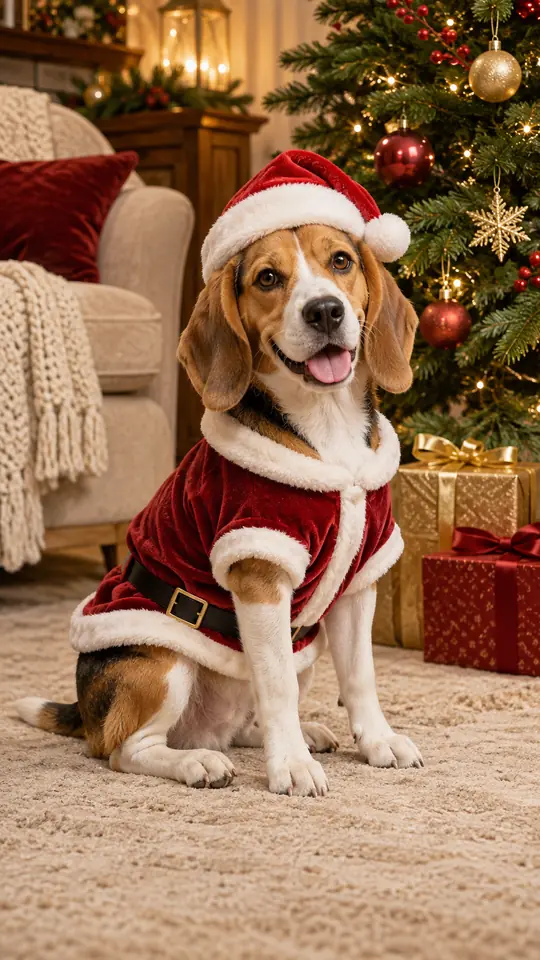
Try a red coat and hat. Keep your pet’s ears and coat markings visible.
Make it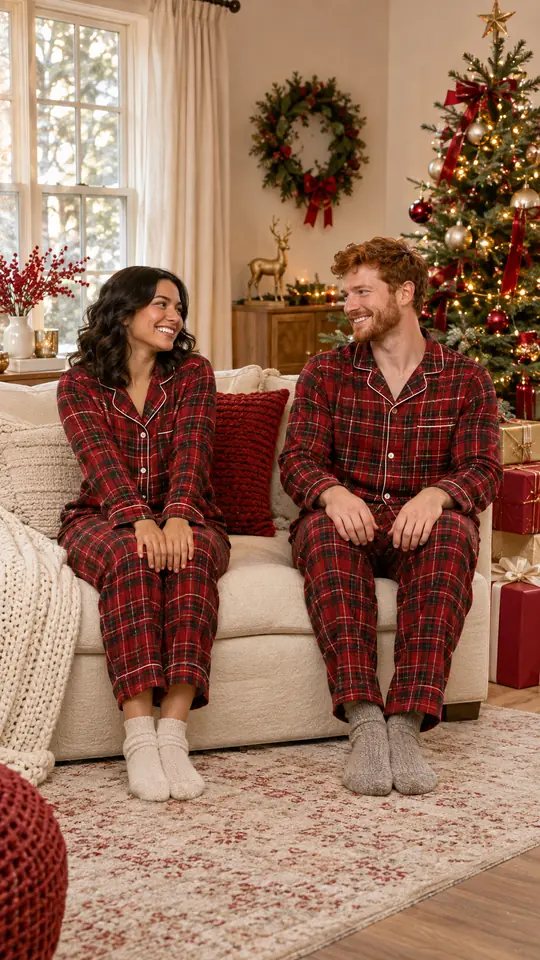
Red plaid on a cream sofa. Upload one photo with both people visible.
Make it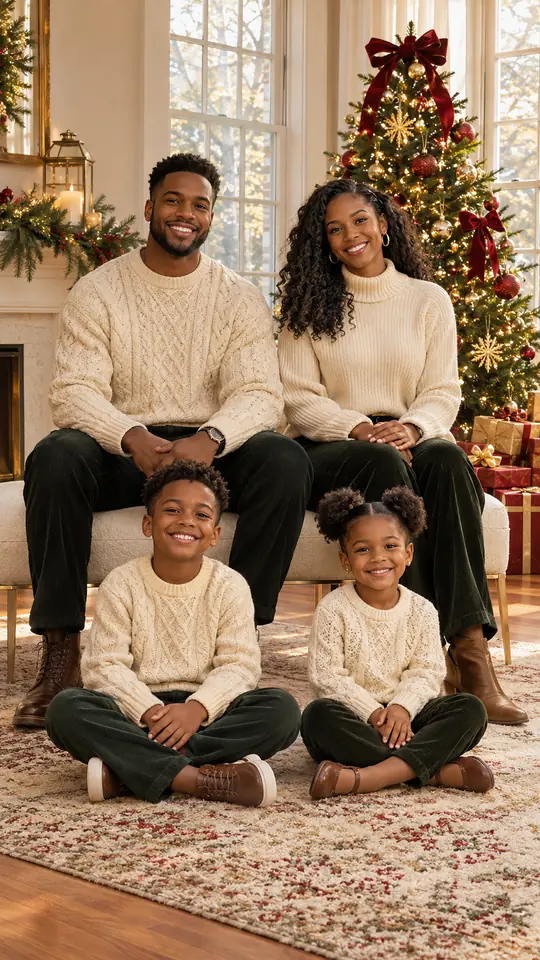
Cream knits and warm lights. Use one photo of parents and two children.
Make it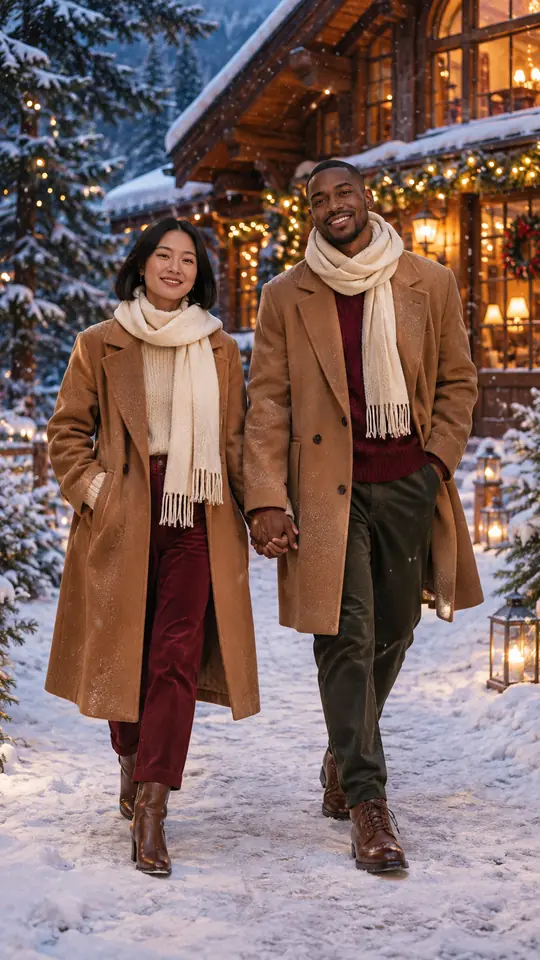
Camel coats at a snowy chalet. Keep both faces clear in your couple photo.
Make it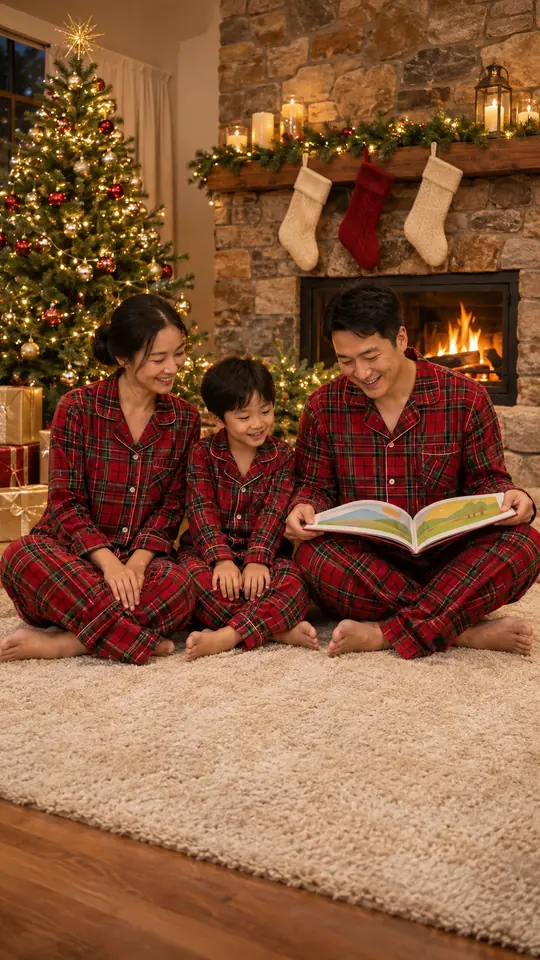
Plaid pajamas and a shared book. Use one photo of parents and one child.
Make it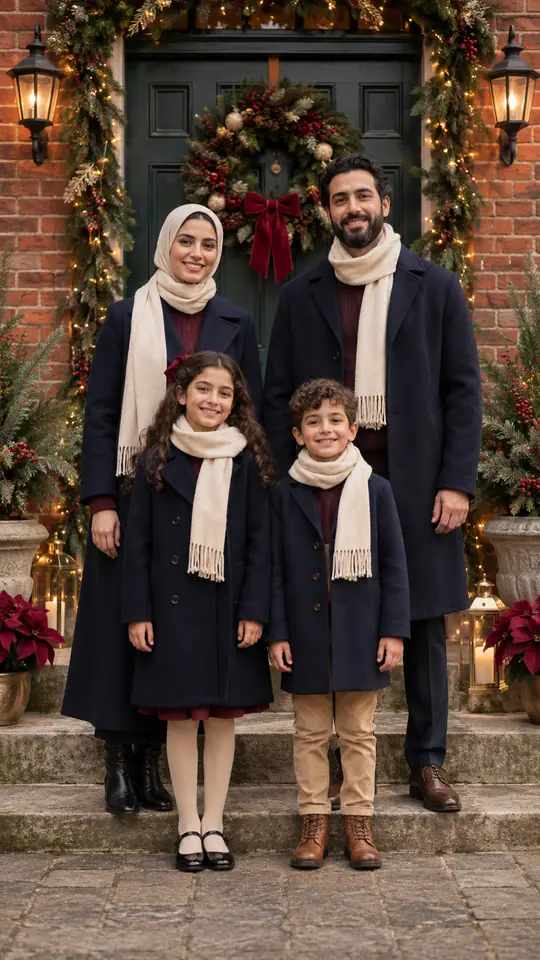
Navy coats by a wreath-covered door. Add a greeting later in your card editor.
Make it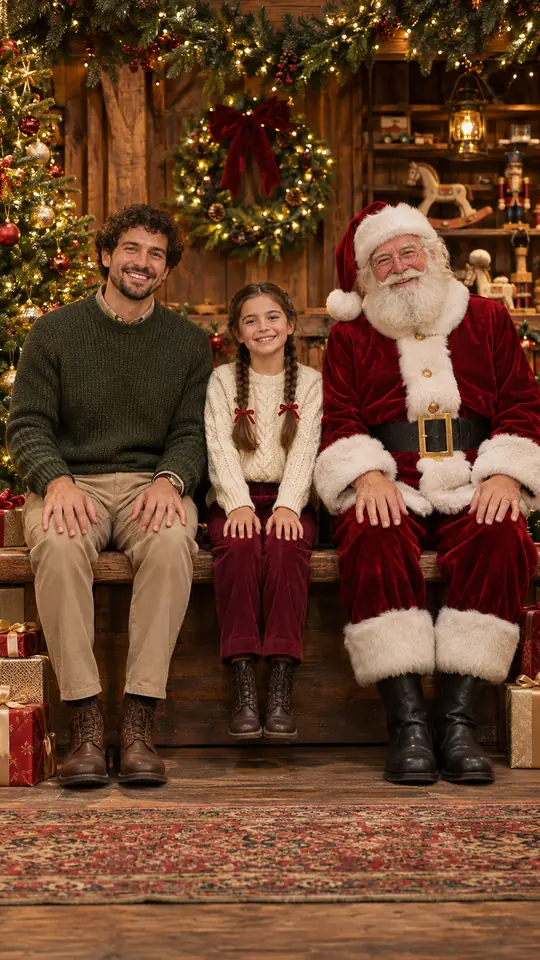
Pose beside a separate Santa. Use one photo with everyone already together.
Make it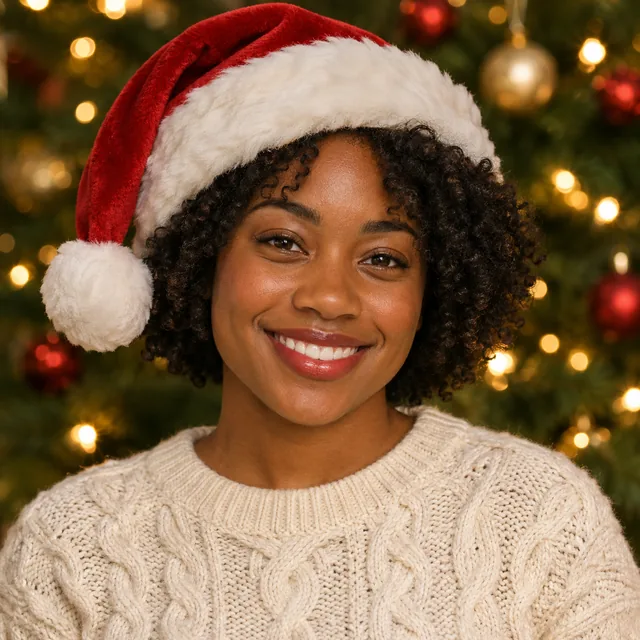
A close portrait with warm lights. Opens Santa hat style in square framing.
Make itFrom inspiration to your photo
A useful idea names a subject, a setting and one visual detail: a couple in red sweaters beside a gold-lit tree, a family reading by the fire, or a pet in a Santa coat. Start with the mood you want, then choose a card whose people and composition fit the photo you have. The studio uses that uploaded picture as its reference for a new still image.
Christmas photoshoot ideas are easier to compare when each has a clear focus. Tree morning centers the group; matching pajamas centers the clothing; a snow scene changes the setting and light. Keep the description to one scene. Read the words filled into the studio and adjust the number of people, clothing or pose to suit your source. A clear face in the upload matters more than a long list of decorations.
For a group portrait, explore family Christmas photos. For animals, use Christmas pet photos or dog Christmas photos. The couples cards use the photoshoot studio here with both people in one uploaded photo. If you prefer to write your own scene, the Christmas photo prompt library has longer descriptions to adapt.
Step by step
Browse the ten cards and choose the people, setting and mood you want. The image and Make it link open the same setup. Photoshoot ideas return to this page with a scene description filled in; pets, Santa and PFP open their matching tools.
Upload a clear JPG, PNG or WebP smaller than 10 MB. For people, use one photo showing everyone together. For Christmas pets, use one photo per animal and choose Two pets when needed. Get permission from everyone pictured and a parent or guardian for children.
Read the selected description or style before creating. Match the described people to your photo and edit details that do not fit. The photoshoot starts at 9:16; 1:1 and 16:9 are also available. Photo with Santa keeps your original photo shape.
A still image uses 5 credits at 1K or 10 credits at the default 2K quality. Sign in when ready and check the displayed cost before pressing Create. Review each face, hand, paw, outfit and background at full size, then download the picture you want to keep. Add card lettering in your own editor.
Why make it here
Choose the composition before uploading. Make it carries the matching scene description or style into the studio, where you can review it and add your own photo. Selecting a card does not start a creation.
People scenes start with one photo showing everyone together. The pets tool offers one animal or two animals from separate photos. Check the upload slots after following a card link.
Keep 9:16 for a tall portrait, select 1:1 for a square profile picture, or try 16:9 for a wide card photo. Photo with Santa keeps the shape of the uploaded picture.
PopFestive shows the selected image cost before creation: 5 credits at 1K or 10 credits at 2K. Sign in with enough credits when you are ready, then check the finished picture before downloading.
FAQ
Click Make it on an idea card to open its matching studio setup. Upload your photo, review the prefilled scene or selected style, choose quality and check the credits before creating. A card click only selects the setup; it does not generate a picture.
No, the people scenes need one photo containing everyone together. Choose a clear group picture and keep the scene description consistent with the people shown. The separate-photo option belongs to the pets tool, where two upload slots represent two different animals.
The ornament and fireplace scenes include a child with parents in one group photo. The tree-morning scene describes parents and two children. Choose a source that fits, or edit the description before creating. Keep faces visible and obtain a parent or guardian’s permission for children.
Yes, the tree-morning, matching-sweater and pajama scenes include a decorated Christmas tree. Choose whether the focus should be the group, the clothing or the lights. Use a clear source photo and check that branches, ornaments and gifts do not cover faces in the finished picture.
A still image uses 5 credits at 1K or 10 credits at the default 2K quality. The same image tiers apply to the photoshoot, pet, Santa and PFP choices linked here. Choosing an idea costs no generation credits; creating the image requires sign-in and enough credits. Read the cost shown in the studio before continuing.
Yes, you can download a picture for a card design or profile. Choose framing for its intended use and review likeness and anatomy first. Add greetings and check print dimensions in your own editor; the studio creates images and does not print or mail cards.
Bring your chosen idea into the PopFestive studio. Review the scene, upload and displayed credits before creating your Christmas picture.