
Christmas Photo Ideas guide
Christmas Photo Ideas: How to Plan & Make Them
Plan christmas photo ideas for couples, kids, pets and tree portraits. Choose a scene, prepare your source photo, check the studio settings and make a picture.
Start with the picture you have and choose one Christmas scene to make from it. The idea hub brings couples, families, kids, pets and profile portraits together. Make it opens the matching photoshoot description or a style in a dedicated tool. PopFestive uses your uploaded photo as a reference; read the selected scene before creating so its people, clothing and mood fit your picture.
Open Christmas Photo Ideas studio →
Before you start
Have your source photos ready and use pictures you have permission to upload. Keep the subject sharp and easy to see. The studio supports uploads from your computer or phone; on a computer, you can also drag a photo into the upload box or paste it.
1. Pick an idea and click Make it
Browse the ten cards and choose the people, setting and mood you want. The image and Make it link open the same setup. Photoshoot ideas return to this page with a scene description filled in; pets, Santa and PFP open their matching tools. Compare subject count as well as color. A scene with parents and children asks for a different source than a couple portrait. For a quiet indoor picture, try the pajama sofa or the fireplace story. For an outdoor setting, compare the snowy chalet and the wreath-covered doorstep. Decide where the finished image will be used before settling on the composition.
2. Add the right source photo
Upload a clear JPG, PNG or WebP smaller than 10 MB. For people, use one photo showing everyone together. For Christmas pets, use one photo per animal and choose Two pets when needed. Get permission from everyone pictured and a parent or guardian for children. Open the source at full size first. Look for faces hidden behind hair, a turned head, motion blur or a cropped hand. Choose another picture if a key feature is difficult to see. The people workbench has one reference slot, so upload the complete group picture there. In two-pet mode, place a different animal in each slot rather than repeating one group image.
3. Review the scene and frame
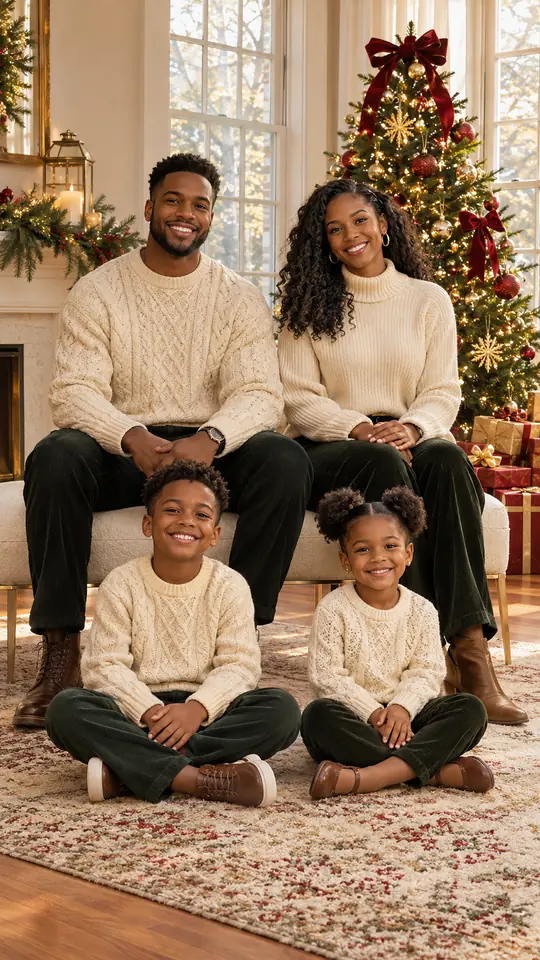
Read the selected description or style before creating. Match the described people to your photo and edit details that do not fit. The photoshoot starts at 9:16; 1:1 and 16:9 are also available. Photo with Santa keeps your original photo shape. Keep a single location and lighting direction in the description. The tree-morning scene asks for cream sweaters and morning light; the snowy-chalet scene asks for coats, scarves and dusk. Combining both descriptions makes the intended scene less clear. Keep the useful parts of the chosen idea, then change the clothing or group details that need to match your own plan.
4. Check credits, create and review
A still image uses 5 credits at 1K or 10 credits at the default 2K quality. Sign in when ready and check the displayed cost before pressing Create. Review each face, hand, paw, outfit and background at full size, then download the picture you want to keep. Add card lettering in your own editor. Check the composition for its destination after downloading. A profile image needs a face that reads at a small size; a family card needs enough room around the group for your chosen layout. If the picture needs another creation, adjust one visible problem at a time so you can compare what changed. Each new creation has its own displayed credit cost.
Photo tips for this tool
- Choose a source with sharp eyes, even light and visible hands. A couple or family needs one picture of everyone together; separate portraits cannot be combined in the photoshoot workbench. Match the number of people in the scene description to the source.
- For a Christmas tree photo, choose whether the people or the decorations lead the picture. Cream knits keep a group quiet against warm lights; red sweaters make clothing more prominent. Avoid asking for several different locations in one description.
- For kids, pick a simple shared activity such as hanging an ornament or reading a book. For pets, use a picture with visible ears and coat markings, and one animal per upload. Check the chosen style after following its card link.
A detail you can try
Read the scene that Make it filled into the photoshoot field, then edit only the details that need to fit your photo. The example below is a shorter description to type yourself. Keep the group size accurate and the setting consistent. Pet and PFP cards select a named style instead; leave optional details empty when that style already describes your idea.
Keep everyone recognizable; cream knit sweaters beside a lit Christmas tree, warm morning light, relaxed group portrait.
How much does it cost?
A still image uses 5 credits at 1K or 10 credits at the default 2K quality. This applies to the still-image choices linked from the hub, including photoshoot, pets, Photo with Santa and PFP. A card click selects a setup without spending generation credits. Creation requires sign-in and enough credits; check the selected amount in the studio before pressing Create.
Check before sharing
Compare the finished PopFestive image with your original at full size. Check every face, hand and paw, and make sure the subjects stay distinct. Review ornaments, clothing edges and the background for unwanted changes. Choose a square frame for a profile, tall for a portrait or wide for a card photo where the tool allows it. Add greetings and check printing dimensions in your own editor before sharing or printing. For a profile picture, check a small preview as well as the full image. Details that look clear at full size can disappear when the picture is reduced.