
Christmas Maternity Photoshoot guide
Christmas Maternity Photoshoot: Ideas and Steps
Plan a Christmas maternity photoshoot with window light, seated and standing framing, wardrobe tips and an optional AI treatment of your own maternity photo.
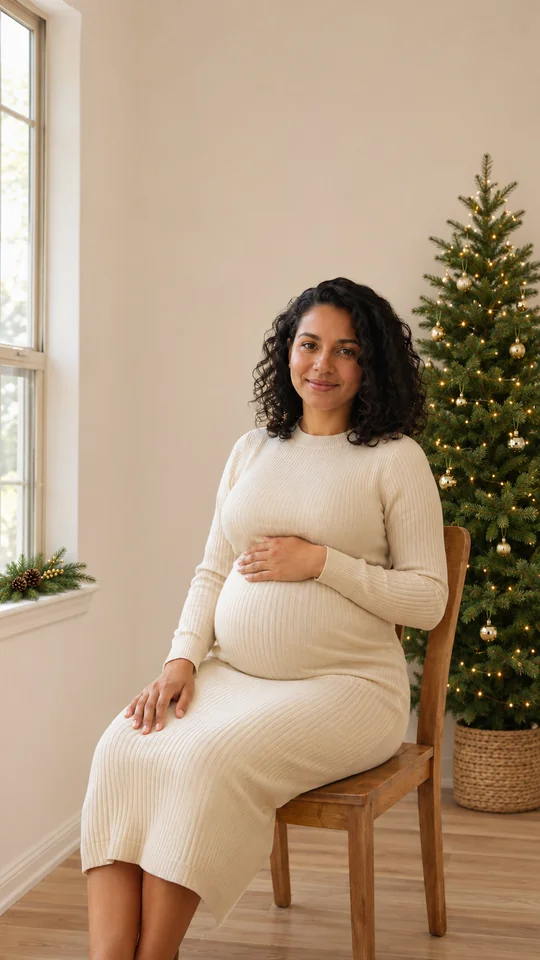
Begin with your own maternity photograph. A chair beside a window, a standing portrait with the tree to one side or a close frame can each keep the focus on the expecting parent. Save the original as a record of the moment. The optional AI festive treatment creates a separate interpretation to review and label as AI. The illustration below is a fictional adult AI example, not a live PopFestive output.
Open Christmas Maternity Photoshoot studio →
Before you start
Have your source photos ready and use pictures you have permission to upload. Keep the subject sharp and easy to see. The studio supports uploads from your computer or phone; on a computer, you can also drag a photo into the upload box or paste it.
1. Choose your maternity photograph
Take or choose one clear portrait with window light. Compare seated and standing framing, check the wardrobe and leave room around the face, hands and bump. Keep the original file.
2. Review the Christmas scene
Choose Make it for a scene description, then edit it to fit your own maternity photo. Add one photo you have permission to use. Choosing a card only fills the details field.
3. Check quality, format and credits
The studio starts with default 2K quality and vertical 9:16 framing. Square 1:1 and wide 16:9 are selectable. 1K uses 5 credits; 2K uses 10 credits per image. Check the selected cost before creating.
4. Create, review and label
Sign in with enough credits and press Create when ready. Check faces, hands, the bump, clothing and composition at full size before downloading. AI can alter these details; label the output as AI when sharing.
Photo tips for this tool
- For a seated portrait, place a chair near window light with the tree farther behind. Frame from the knees upward and keep your hands and bump visible, with space around their edges.
- For a standing view, try a three-quarter angle with your face turned toward the window. Put the tree to one side instead of directly behind your head, and leave room below the dress hem.
- Choose wardrobe you already like in photographs. Cream knitwear, burgundy or sage can carry the palette. Check how sleeves and fabric fall in both seated and standing frames; avoid props covering the bump.
- For a closer portrait, keep your face, hands and bump in frame and let one small ribbon or softly blurred tree lights provide context. Use this clear maternity portrait as the optional AI reference.
A detail you can try
Choose a scene on the tool page to fill the description, then edit it to fit your photo. A scene link fills text only and never starts generation. Use an existing maternity photograph that you have permission to upload.
Apply an AI festive treatment to my uploaded maternity photo: natural window light, a cream knit outfit, a Christmas tree behind the chair with small gold ornaments. Use the seated composition shown in my photo.
How much does it cost?
1K uses 5 credits; 2K uses 10 credits per image. The default is 2K with vertical 9:16 framing. Square 1:1 and wide 16:9 are selectable. One upload is used. Review the selected cost before pressing Create.
Check before sharing
AI can alter faces, hands, clothing, the bump and other body details. Review those areas and the composition at full size before downloading. Keep the original photograph separately, and label the output as AI when sharing. This tool provides a downloadable digital image; PopFestive does not arrange photographer appointments, print photographs or ship physical products.