
How to Make AI Christmas Photos
Learn how to make AI Christmas photos from one picture: choose a clear portrait, set the scene and format, check credits, and prepare a festive image safely.
Learning how to make AI Christmas photos starts with an ordinary portrait and a clear idea of where the final image will be used. A square profile picture, a vertical holiday portrait and a wide photo for a greeting each benefit from thoughtful framing. Follow the PopFestive workbench steps below to choose your photo, shape the scene and prepare a personal holiday picture.
You need one photograph you have permission to edit, a browser and a few words about the holiday setting. An everyday phone portrait is a useful starting point. For a child’s photo, get a parent or guardian’s consent first. Follow the illustrated steps below to choose the photo, set the scene and prepare a festive portrait with a clear, recognizable face.
Step 1: Choose a clear portrait
Start with a sharp picture in even light. Keep the full face visible and leave some space around the head and shoulders. Choose a natural expression and a simple background so you can focus on the face as you plan the Christmas scene. Use a photograph you own or have permission to edit and share. For a child’s image, ask a parent or guardian before uploading it.
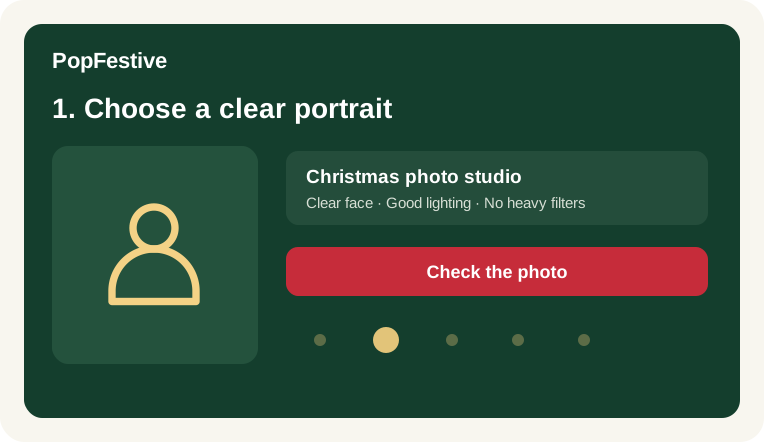
Choose a clear portrait with the whole face visible.
Step 2: Open the matching photo workbench
For a festive portrait, open the AI Christmas photoshoot page. For a greeting-photo composition, use the Christmas card generator page and plan space for your message. For a red hat and Santa-inspired styling, open the Santa photo page. Each tool uses the same upload and quality controls, with starting framing and scene details suited to its purpose. Add one photograph using the upload slot or the phone-upload option.
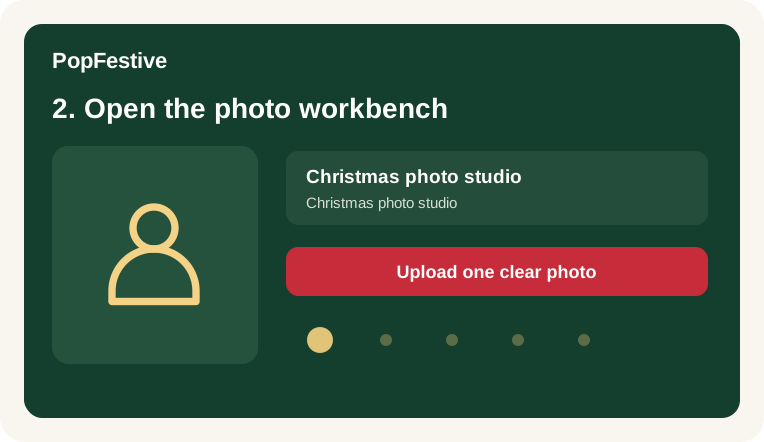
Open the workbench and add your portrait.
Step 3: Pick quality and framing
The image model in this workflow is Nano Banana 2. Use the quality control to choose the image size and one of the supported frame shapes. A square crop suits a profile picture, a vertical frame suits an individual portrait, and a wide frame leaves room for a greeting. Read the credit amount under the action button after changing the quality, then check that your composition keeps the face clear.
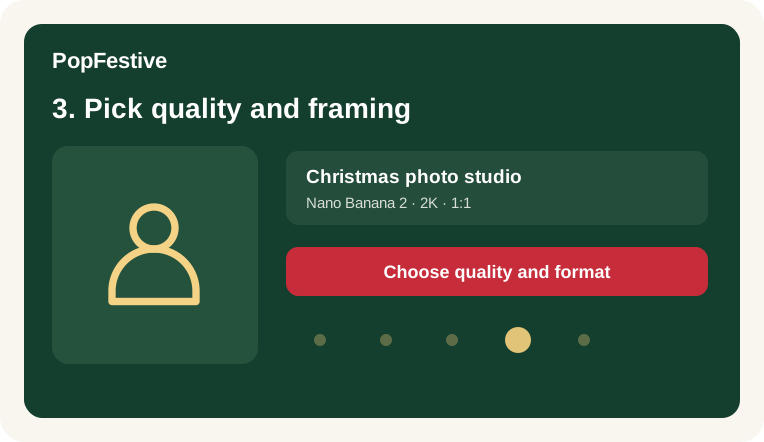
Choose quality and a frame that fits your picture.
Step 4: Describe a focused Christmas scene
Write a short, specific request with one clear Christmas setting. Warm tree lights, a red knitted sweater and a simple indoor background make a cozy starting point. For a card photo, leave quiet space beside the subject and add important text in your favorite editor. Choose generic festive details and keep the props, colors and lighting in the same seasonal mood.
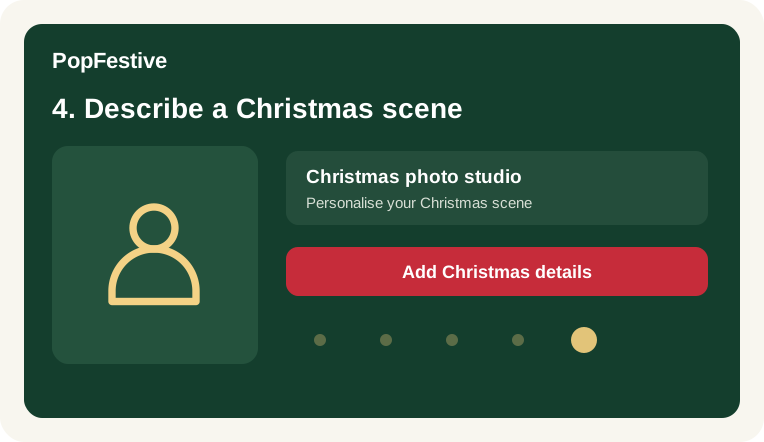
Add the Christmas details that make the scene yours.
Step 5: Review the input and create action
Check the selected photograph, framing and scene description before pressing the action. The button shows the action name, while the credit amount sits directly underneath. Read through your Christmas details, make sure the frame fits the intended use and review the source portrait. A focused scene and a clear face give you a straightforward way to judge the picture before you share it.
Step 6: Inspect a result before sharing
Review your Christmas photo at full size and compare the face with the reference. Look at the eyes, teeth, hands, hat edges and background objects. Check an avatar at its actual small display size as well. For a greeting, add names and important wording in your favorite card editor, proofread every line and review the crop before sending it. Keep an original copy of the source photograph for comparison.
Choose your Christmas keepsake
Choose the keepsake that fits the occasion. Santa Nice List is an unofficial, just-for-fun AI photo certificate featuring a child’s portrait and name, not a free printable template. Christmas pets supports pet portraits with one or two photos. Baby riding reindeer adds a moving winter scene. Each effect has its own inputs and format to suit the picture or video you want to prepare.
Improve your portrait setup
Choose a sharper source photo before adding more scene details. Open the tool that fits your purpose and use a frame with room for the face or greeting. Keep the Christmas setting focused, then review the quality and credit amount. The matching guides help you choose a photo, refine the composition and prepare a seasonal portrait you will enjoy sharing.
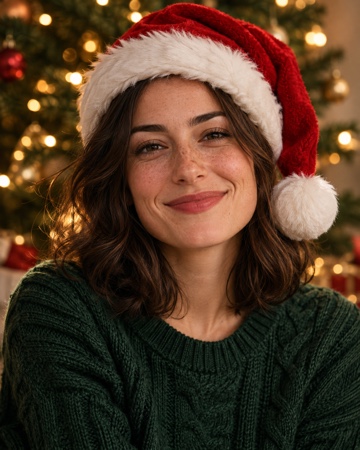
A warm Christmas portrait with a red Santa hat and soft tree lights.
FAQ
How to make AI Christmas photos FAQ
Choose a clear portrait, open the matching photo workbench, select quality and framing, and describe one focused Christmas scene. Read the credit amount below the action before continuing, then review the face, seasonal details and crop before sharing your picture.
Use a sharp image with a clearly visible face, even light and some room around the head. Avoid sunglasses, heavy filters and a crowded group shot. Use only photographs you have permission to edit, with a parent or guardian’s consent for a child’s picture.
Start with a saved portrait in your browser and choose a festive setting in the photo workbench. Use the existing quality options and read the credit amount below the action. A well-lit phone photo and a focused scene description are useful starting points for a personal Christmas portrait.
Prepare a photo for your greeting, then place it into your favorite card editor. Add your message, check the crop and leave comfortable margins around the face and text. Use your printer’s recommended file size and layout settings when preparing a printed Christmas card.
Santa Nice List is an unofficial, just-for-fun AI photo certificate with a child’s portrait and name, not a free printable template. Choose it for a personalized Christmas keepsake with a name and a short message.
Baby riding reindeer is a generated Christmas video, not a live call with Santa. Use it for a playful winter adventure, or choose one of the photo effects for a festive portrait, card photo or named keepsake.
Prepare your Christmas photo
Ready to choose your source portrait and scene? Open the matching generator below, or use one of the other photo workbenches for a different purpose.
Open the Christmas photoshoot studioRelated Christmas photo tools
- Christmas photoshoot — Prepare an AI Christmas photoshoot from one portrait. Choose festive lighting, framing and personal details, with photo tips and clear quality options.
- Christmas card photo — Use the AI Christmas card generator to prepare a personal holiday photo. Pick a festive scene and wide framing, then add your greeting in your own editor.
- Santa photo — Prepare an AI Santa photo from one portrait. Choose a Santa hat, warm lights and festive framing, with clear photo tips, quality options and sample ideas.
- Christmas wallpaper — Create an AI Christmas wallpaper from your own photo. Make a custom Christmas wallpaper for your phone lock screen or desktop with festive colors and framing.
- Christmas background — Create an AI Christmas background from your photo or a short description. Choose festive scenery for Zoom calls, social covers and Christmas card designs.