
A festive scene for every screen you show up on in December
 A festive scene for every screen you show up on in December
AI Christmas Background for Calls, Covers and Cards
Create a wide 16:9 Christmas scene for your Zoom calls, social media covers and greeting cards, starting from a favorite photo or a single sentence about the room you're dreaming of.
1Add a photo (optional)
Use your own photo, or describe the Christmas scene you want in step 4.
Tip: drag photos onto the boxes, or paste one with Ctrl+V (⌘V).
2Pick your Christmas effect
3Choose quality & format
Describe the Christmas background you want, or add a photo above.
This Christmas background: 12 credits · 100 credits a month for $29.90, or 400 a year for $100
By creating, you confirm you have permission to use the uploaded photos. Terms of Service
No subscription needed · Ready in minutes · Failed creations are never charged
Updated Nov 13, 2026
The short answer
Create a wide 16:9 Christmas scene for your Zoom calls, social media covers and greeting cards, starting from a favorite photo or a single sentence about the room you're dreaming of.
What’s new on this page
- — 16:9 is now the default shape, ready for video calls, cover images and wide cards.
- — Start from a photo or from a short description of the scene you want.
- — Four festive looks: Classic Red & Gold, Cozy Christmas, Snowy Wonderland and Santa's Workshop.
- — Layout tips for keeping the center calm behind your face or your greeting.
- — Links to the photoshoot, card, Santa photo and wallpaper pages.
Made with PopFestive
Your photo in, a Christmas background out
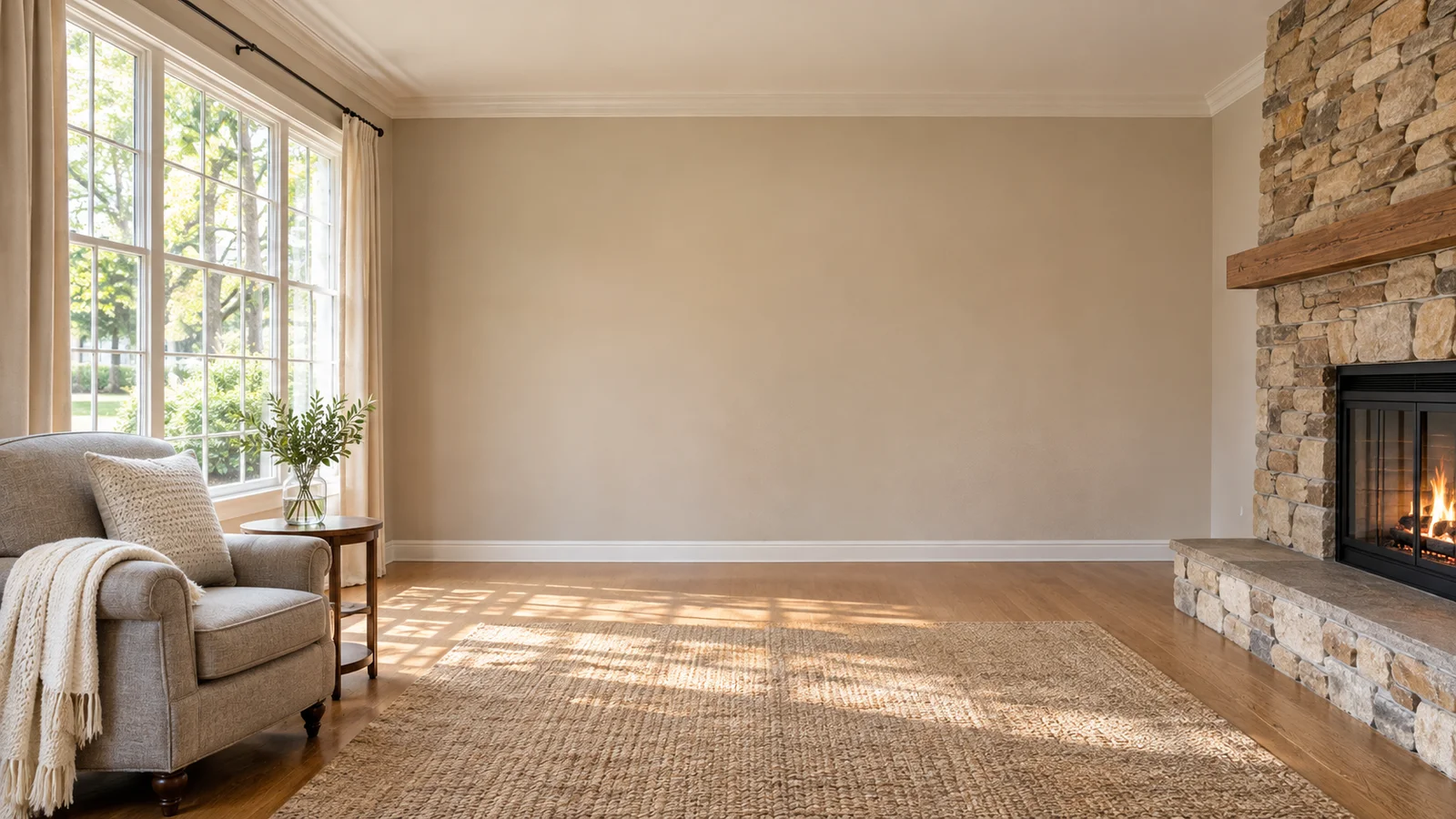
Each example starts with something simple. It might be a photo of your own living room, a picture of the family on the sofa, or just a line like "a cozy cabin with a big tree and snow outside." On the right is the wide Christmas scene that comes out: a crackling fireplace with stockings, a frosty window with soft blue light, or a workshop full of toys and ribbon.
Look at the middle of each background. It stays a little quieter than the edges, because that's where you'll be sitting on a video call, or where your name and greeting will go on a cover or a card. The decorations frame the scene without crowding it. Pick a mood you like, then make your own.
Your photo in 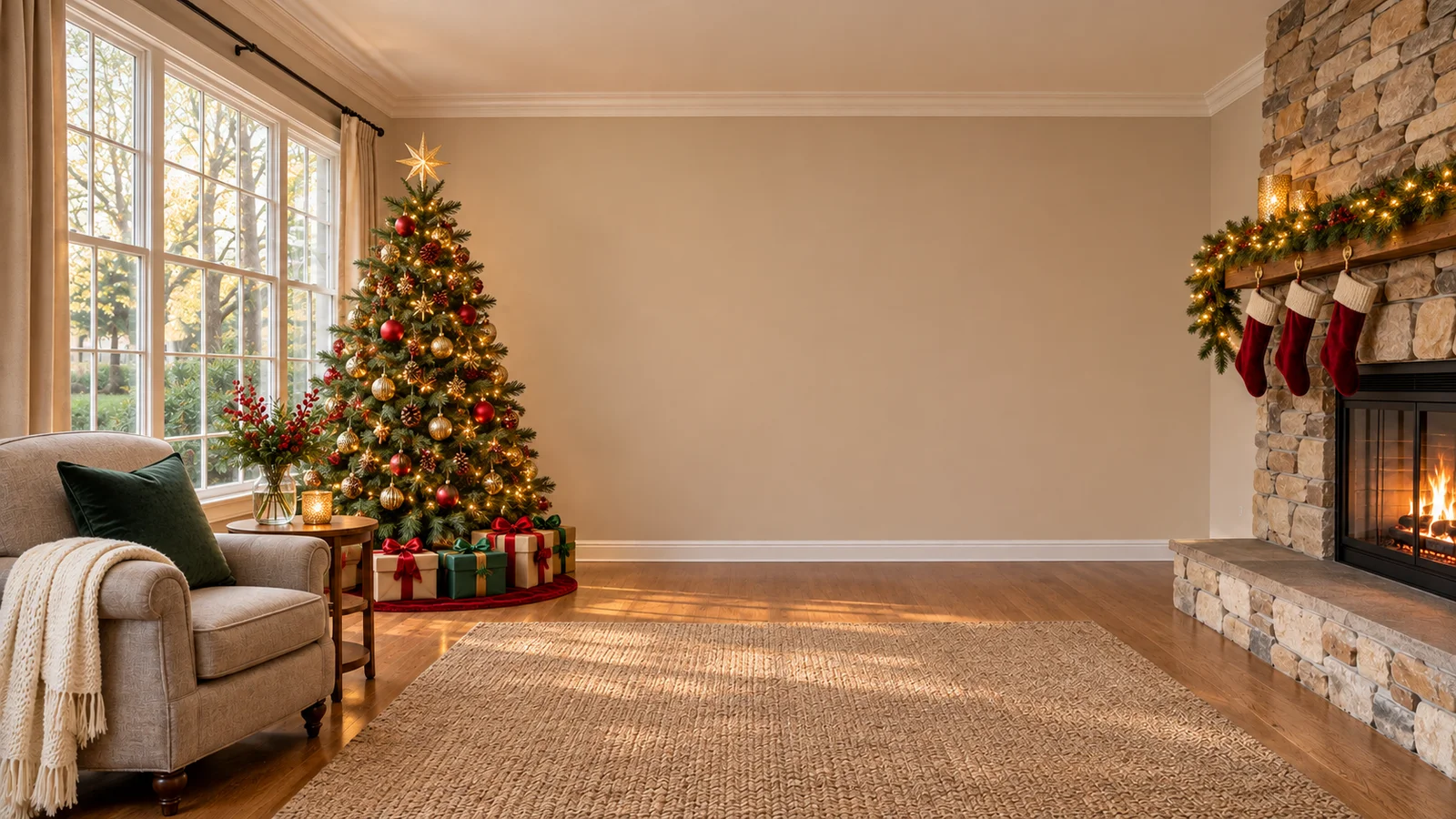
Your Christmas look out Your starting photo 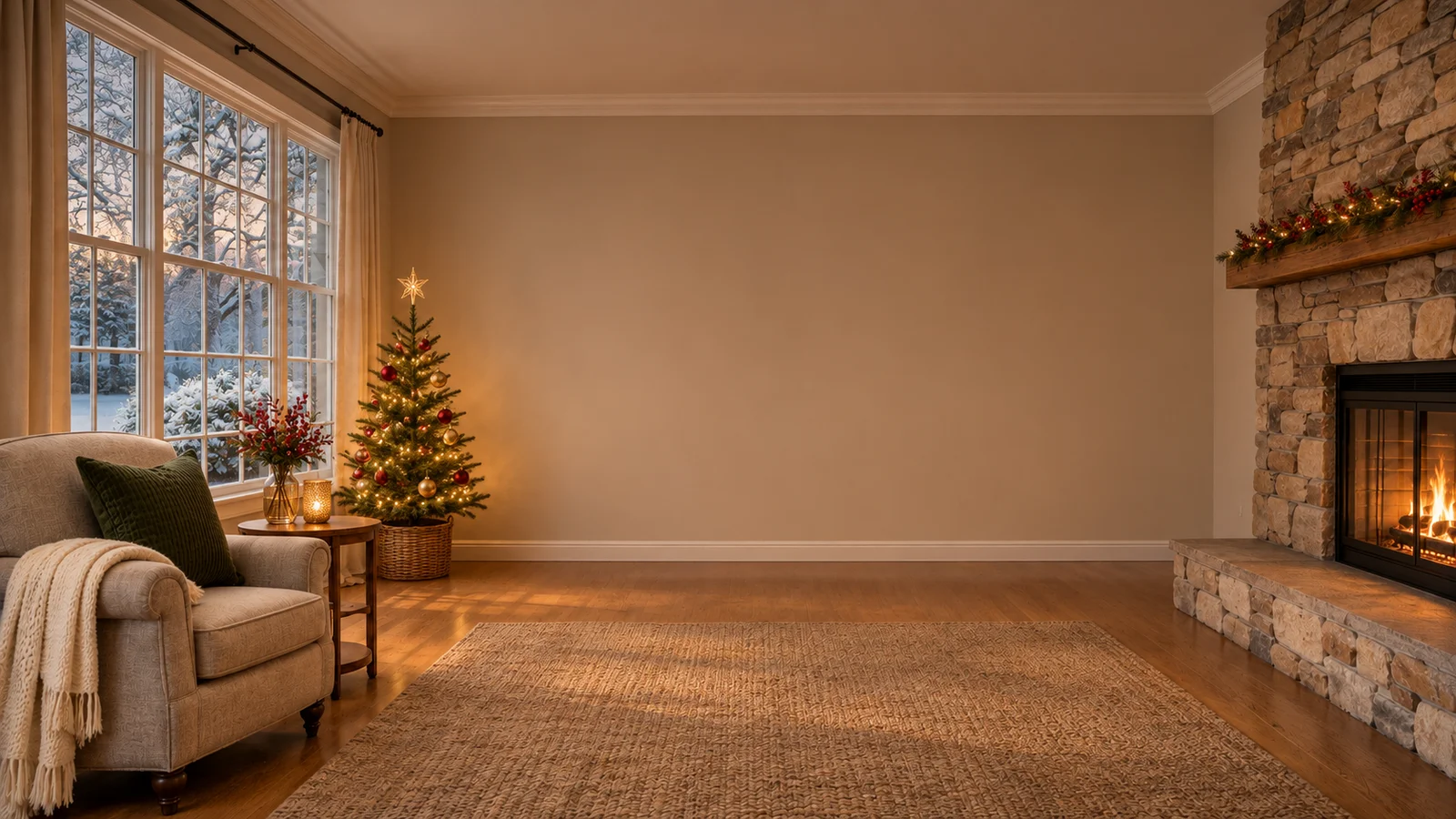
Another festive look
Your personal Christmas creation
What is an AI Christmas background?
An AI Christmas background is a wide festive scene you can put behind yourself, your words or your photos. With PopFestive, you start from a picture you love or a short description, choose a Christmas look, and get a seasonal setting with tree lights, garlands, snow or a cozy fireside, shaped in 16:9 so it fits a laptop screen, a video call or a banner.
December is full of screens. There's the team's end-of-year call, the online quiz with the cousins, the school concert stream and the family video chat with Grandma. A Christmas Zoom background brings a bit of warmth to every one of them, and it hides the boxes of wrapping paper in the corner too. The same wide image also makes a lovely social media cover, a header for your holiday newsletter, or the base layer of a Christmas card where you add your own text and photos on top.
Starting from a photo gives you a personal scene, like your family in a snowy evening or your own front room dressed up for the holidays. Starting from a description lets you invent the room you wish you had, such as a log cabin, a grand hall with a tall tree or a quiet snowy village street.
Want it on your phone instead? See the AI Christmas Wallpaper
Step by step
How to make an AI Christmas background
Four steps to choose your input, frame the picture and bring the Christmas details together.
- 1
Start with a photo or an idea
Upload a clear photo if you want your family, your pet or your own room in the scene. Prefer to imagine it? Describe the setting in a sentence, such as "a cozy cabin with a fireplace and a tall decorated tree."
- 2
Choose your Christmas look
Cozy Christmas gives you warm firelight, perfect for evening calls. Snowy Wonderland is calm and bright, great for covers. Classic Red & Gold feels elegant and traditional, and Santa's Workshop is fun for kids' events and family chats.
- 3
Keep 16:9, or pick another shape
The wide 16:9 shape is already selected, which suits Zoom, Google Meet, Teams and most cover images. Choose 2K for a large monitor or a printed card, or 1K for a quick call background.
- 4
Keep the center calm and create
Add a detail like "leave the middle simple" or "garland across the top." Create your background, check that the center has room for you or your text, then download it and set it in your video app or design tool.
More Christmas effects
Made from your own photos: a certificate for the kids, a festive avatar, a pet portrait or a snowy little video.
 Christmas PFPA festive profile picture to show up on calls with your new background.Make it
 Christmas petsYour dog or cat in a cozy Christmas scene.Make it
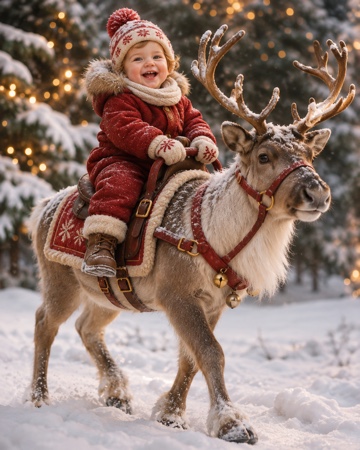 Baby riding reindeerYour baby riding a reindeer through the snow.Make it
Santa Nice List — A personal Nice List certificate with your child's photo and name. Make it
AI Christmas Photoshoot — A whole set of festive family portraits from everyday photos. Make it
AI Christmas Card Generator — The photo that goes on the front of this year's card. Make it
AI Santa Photo — Santa hat, red coat and twinkling lights on someone you love. Make it
AI Christmas Wallpaper — A festive 9:16 lock screen made from your favorite face. Make it
Why make it here
Why make your AI Christmas background here
Wide and ready from the start
The 16:9 shape is selected by default, so your background fits video calls and cover images without stretching or awkward crops. Download it and use it right away.
A scene that feels like yours
Use a photo of your family or your own room for a background that feels personal, or describe a dream setting in your own words. Either way, it's a Christmas scene made for you.
Room for you and your words
Each look frames the scene with lights, garlands and snow while keeping a calmer center. Your face on a call, or your greeting on a card, stays easy to see.
One image, many uses
The same background works for a December video call, a social media cover, a newsletter header and the base of a Christmas card. A background uses 8 credits at 1K or 12 credits at 2K, and pack credits never expire.
FAQ
AI Christmas background FAQ
The default is 16:9, the wide shape used by laptop screens, video calls and most cover images. You can switch to another shape in the format step if you need a vertical or square version.
Download the image, open your Zoom settings, go to Backgrounds & Effects and add it as a virtual background. Google Meet and Microsoft Teams have similar options for uploading your own background image.
Yes. Describe the scene you'd like, such as "a snowy village street at dusk with warm shop windows," and choose a Christmas look. A clear, single idea gives the most natural result.
Yes. Download the background and place it as the bottom layer in your card app or print template, then add your photos, greeting and family name on top. Choose 2K if you're printing.
The looks keep decorations toward the edges and the center calmer. For extra space, add "leave the middle simple" in the details field, and check the result in your video app's preview before the call.
Each background uses 8 credits at 1K or 12 credits at 2K. You can buy a one-time credit pack with no subscription, the credits never expire, and downloads come without a watermark.
Bring Christmas to your next call
Start from a photo or a single sentence, choose a festive look and set your new background today.