
Baby Riding Reindeer · Signature guide
How to Make a Reindeer Signature Christmas Video
Make a Baby Riding Reindeer Signature video in Ultra quality. Use a baby portrait or separate baby and parent photos, check settings and create.
Signature is the Ultra edition of Baby Riding Reindeer. Open the Signature preset before adding your photos so the studio selects the right edition. Use one baby portrait for a baby-only scene, or separate baby and parent portraits for a scene together.
Open Baby Riding Reindeer · Signature studio →
Before you start
Have your source photos ready and use pictures you have permission to upload. Keep the subject sharp and easy to see. The studio supports uploads from your computer or phone; on a computer, you can also drag a photo into the upload box or paste it.
1. Open the Signature edition
Use the Signature studio link on this page, or select Baby riding reindeer · Signature in the tool. Check that Ultra is selected before you create.
2. Add one or two portraits
For Baby only, upload one clear baby portrait. For Baby + parent, choose Two photos and upload the baby first and the parent second, one person per photo. JPG, PNG and WebP files must be smaller than 10 MB each.
3. Review quality, length and format
Signature uses the Ultra model. At 720p and 12 seconds, the current video costs 37 credits. If you change resolution or duration, use the live cost shown in the studio. The frame starts vertical at 9:16.
4. Create and review your video
Optionally add a name or Christmas detail, sign in and press Create. Review the faces, the parent’s position and the movement before downloading. Starting a creation is the step that uses credits.
Photo tips for this tool
- Use a sharp, front-facing or lightly turned portrait with even light and no heavy face filter.
- For two-photo mode, use separate portraits. Do not upload the same combined family picture into both slots.
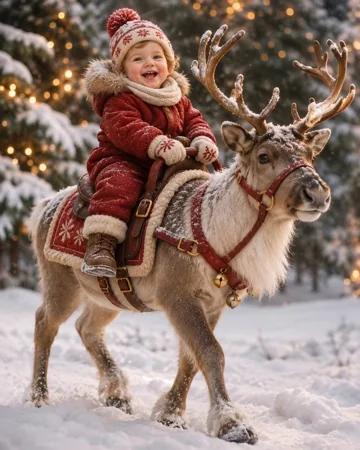
- Preview images are illustrative covers. A generated video can vary in face likeness, movement and scene detail.
A detail you can try
The optional details field is for a name or a short scene preference. Keep requests specific, and keep the selected style consistent with the result you want. You can leave the field empty to use the selected look.
Oliver in a cozy Christmas scene; preserve his face and natural proportions.
How much does it cost?
The Ultra 720p, 12-second Signature video costs 37 credits. Resolution and duration can change that number. Check the studio’s cost before creating; a failed creation returns its credits.
Check before sharing
Review the finished result at full size. AI can change small features and composition, even when prompted to preserve the subject. If the face, markings, framing or placement look wrong, try a clearer source photo or adjust the details before making another creation.