
Photo with Santa guide
How to Add Santa to Your Photo: Step by Step
Make a photo with Santa from one family, child or pet picture. Choose a style, review framing and credits, and check the finished portrait.
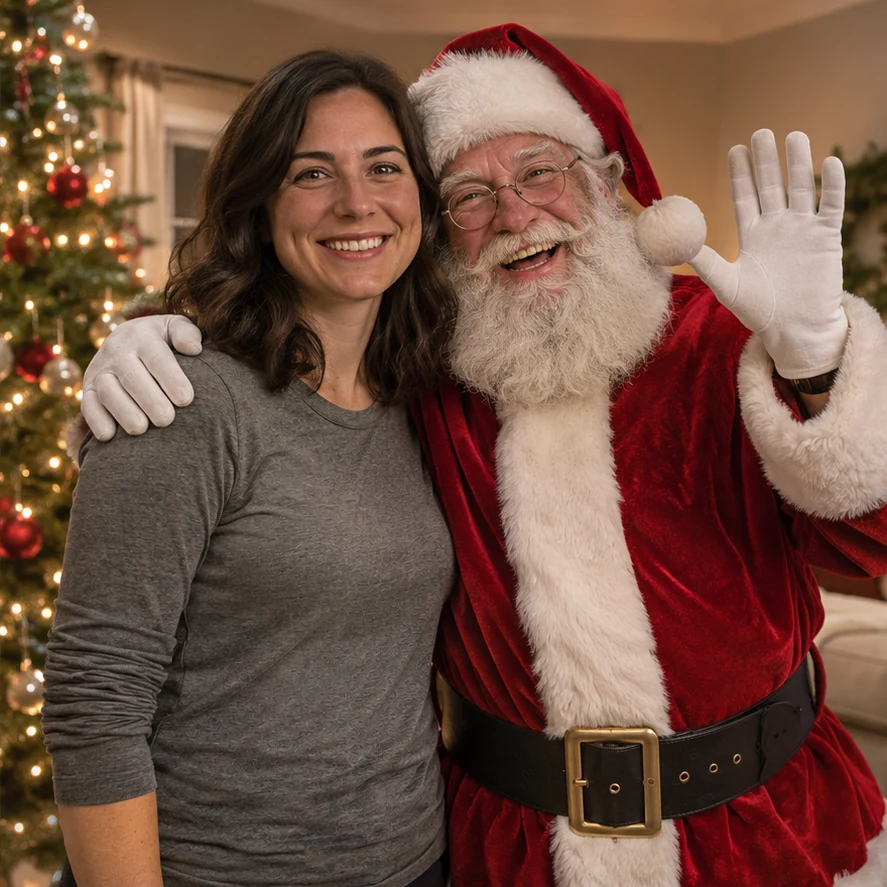
Photo with Santa adds a separate Santa posing beside the subjects in your existing picture. Start with one family, child or pet photo and choose the setting. This guide is for a portrait together with Santa; it does not turn your subject into Santa.
Open Photo with Santa studio →
Before you start
Have your source photos ready and use pictures you have permission to upload. Keep the subject sharp and easy to see. The studio supports uploads from your computer or phone; on a computer, you can also drag a photo into the upload box or paste it.
1. Upload 1 photo
Use 1 JPG, PNG or WebP up to 10 MB. Choose clear faces and leave space for Santa to stand or sit beside the subjects. For Snowy outdoor, start with an outdoor winter photo. Only upload photos you have permission to use.
2. Choose 1 of 4 styles
Select By the tree, Santa’s grotto, Snowy outdoor or Kids or pets with Santa in the studio on this page. Add optional details in up to 120 characters.
3. Review quality and cost
1K uses 5 credits; the default 2K uses 10 credits for 1 image. Original photo shape is selected automatically. Sign in with enough credits before creating.
4. Create and review
Press Create my photo with Santa when ready. Review faces, hands, Santa’s placement and lighting before downloading or sharing. Confirmed failed creations return their credits; an uncertain provider response is checked before a refund.
Photo tips for this tool
- Choose a well-lit photo with sharp faces and enough space for Santa beside the subjects.
- By the tree, Snowy outdoor and Kids or pets with Santa are asked to keep your surroundings. Santa’s grotto may replace the background with a decorated portrait setting.
- The studio requests your original photo shape. Check the output for framing, faces, hands and paws before downloading.
A detail you can try
The optional details field is for a name or a short scene preference. Keep requests specific, and keep the selected style consistent with the result you want. You can leave the field empty to use the selected look.
Santa beside us by the Christmas tree; keep our faces, clothes and room recognizable.
How much does it cost?
A 1K picture uses 5 credits and the default 2K picture uses 10 credits. The cost is shown before creation. A failed creation returns its credits.
Check before sharing
Review the finished result at full size. AI can change small features and composition, even when prompted to preserve the subject. If the face, markings, framing or placement look wrong, try a clearer source photo or adjust the details before making another creation.