
Updated
How to Make AI Christmas Wallpaper From Any Photo
Make a photo you already love feel like Christmas. This guide uses Add Christmas decor to decorate the existing scene, whether it contains a person, a pet, a product or no subject at all. Start with one image; a face is not required.
Choose a photo with room for decorations
Clear, evenly lit photos work best. Keep faces, paws, product edges, windows and furniture visible. A tightly cropped face can receive subtle background lights, while a wider scene gives the AI more space for a tree, garlands or gifts. You do not need to buy props or dress anyone in a costume. Use a photo you have permission to edit.
Make your Christmas wallpaper in four steps
1. Upload a photo of anything
Choose one clear JPG, PNG or WebP photo under 10 MB: a person, a pet, a product, a room or an outdoor view. Leave the surroundings visible so there is space for decorations. No face is required.
2. Choose Add Christmas decor and a look
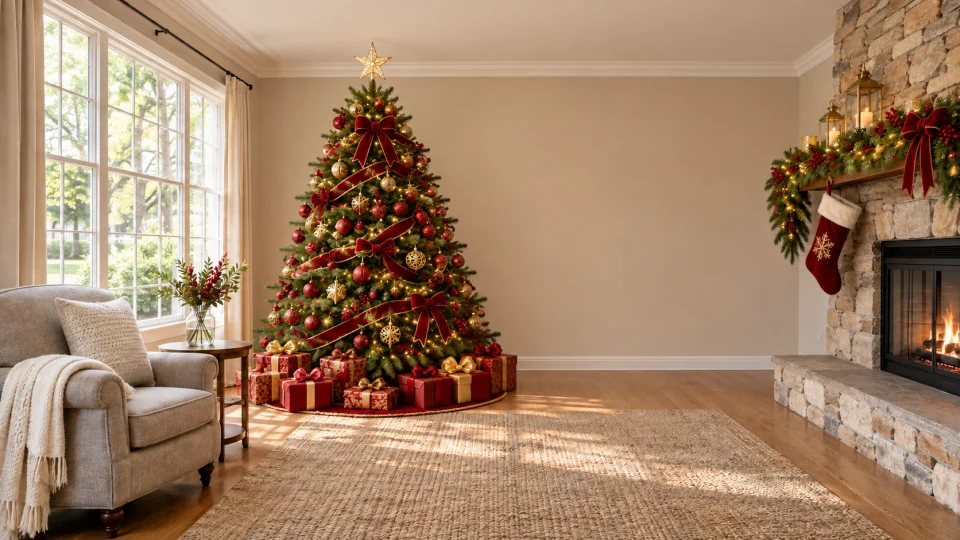
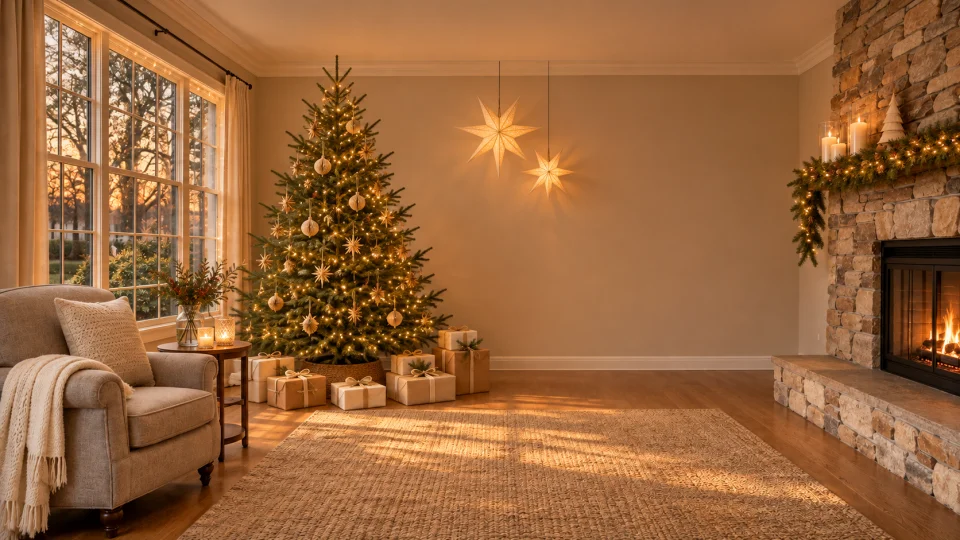
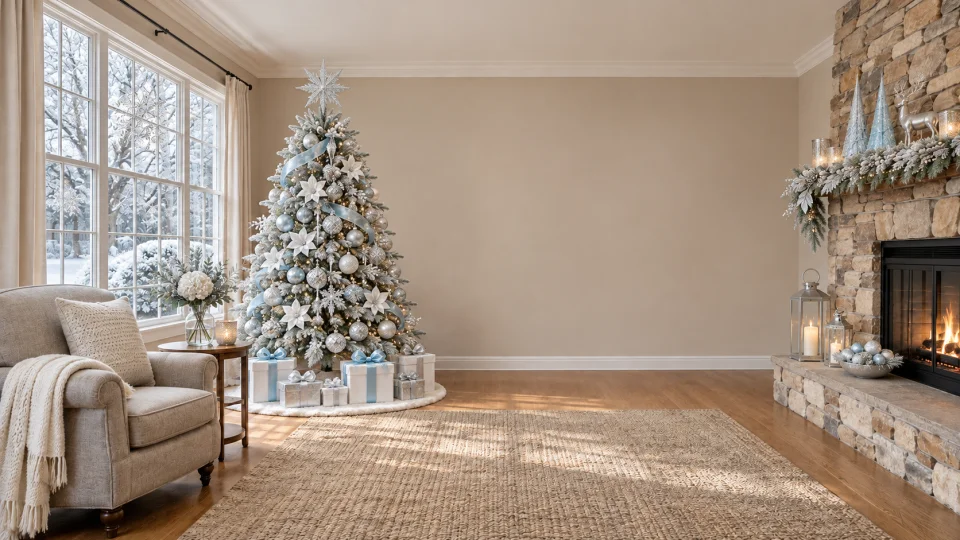
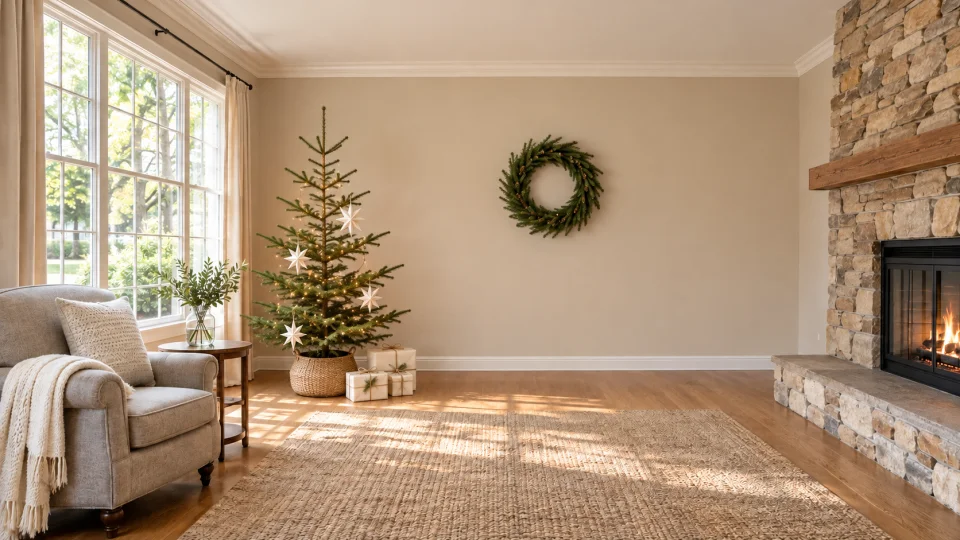
The first option in step 2, Add Christmas decor, is already selected here. Compare Classic Christmas, Warm lights, Snowy Christmas and Minimal Christmas. The four room previews use the same source so you can see the decoration differences.
3. Choose quality and a screen shape
Keep Original photo shape to preserve the source framing. Choose 9:16 for a phone wallpaper, 1:1 for a square picture or 16:9 for a desktop wallpaper. A 1K image uses 5 credits; the default 2K image uses 10 credits.
4. Add details, create and download
Optionally describe where to put the decorations or what to leave clear, such as “keep faces uncovered and leave the upper wall clear for my clock.” Sign in and create, then review the scene and download the image. Set it as your wallpaper in your own device settings. Failed creations return their credits.
The same room in four Christmas looks
Classic Christmas adds red, green and gold. Warm lights favors amber light and cream. Snowy Christmas uses white and silver, keeping any snow outside the room. Minimal Christmas keeps the decoration sparse. Each preview opens the matching style in the studio.
People and pets can stay in their own scene
The decoration effect is prompted to preserve faces, clothes, poses and fur markings. It adds holiday details around the subject rather than requiring a Santa outfit or a replacement location. These illustrative comparisons use an existing portrait and dog photo; live AI results may differ.
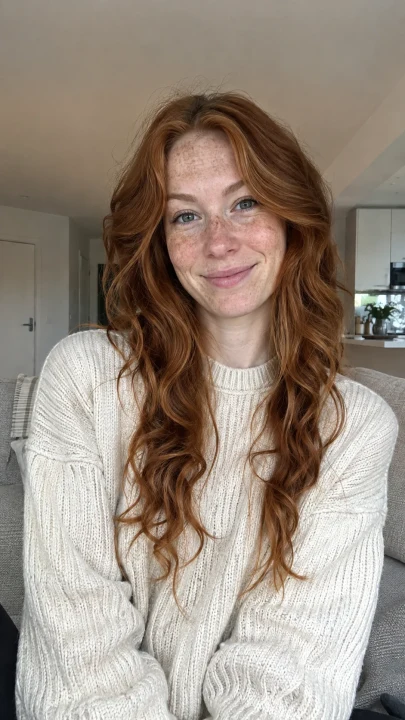
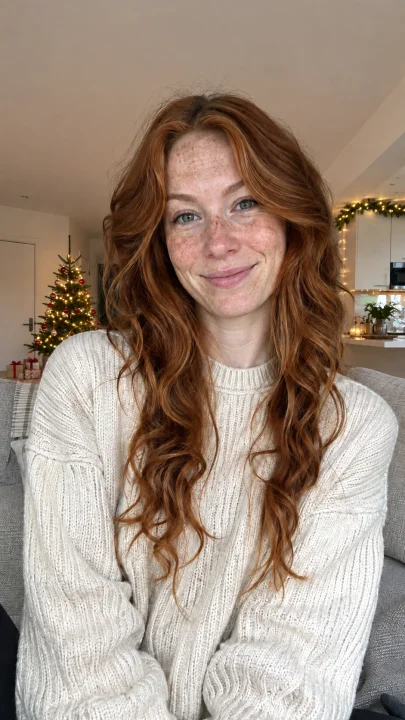
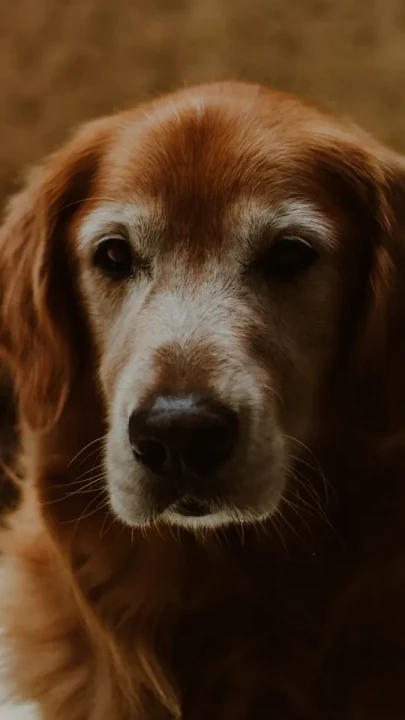
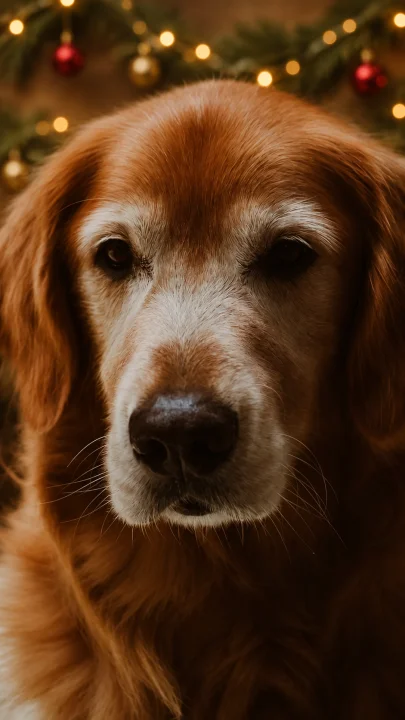
Choose phone, desktop or the original photo shape
Original photo shape is the default and asks for the source framing to remain intact. Use 9:16 for a vertical phone wallpaper, 1:1 for a square image, or 16:9 for a wide desktop background. An aspect ratio describes the shape, not your device’s exact pixel dimensions. Check the image fit in your device settings after downloading.
For a phone lock screen, ask for “subtle decorations and a clear upper wall for my clock.” For a desktop, try “warm lights at the edges, keep the center calm for icons.” The AI may extend the background to fit a new shape; review the edges and subjects before applying it.
Check likeness, details and cost before sharing
Check faces, fingers, paws, fur markings, product lettering, furniture and perspective at full size. AI may alter small details even when instructed to preserve them. If needed, use a clearer or wider source image and describe the decoration placement more precisely. A 1K image costs 5 credits and the default 2K image costs 10 credits. Failed creations return their credits; a new successful generation uses credits again.