
How to Make a Baby Riding Reindeer Video: Step by Step (2026)
How to prepare a baby riding reindeer video from one photo: a snowy scene, winter clothing, photo tips, quality settings and the video cover.
Updated Nov 13, 2026
The short answer
Preparing a baby riding reindeer Christmas video takes four studio steps: add one clear photo of your baby, choose Baby riding reindeer, select the format, then add names or Christmas details. This is the video effect in the Christmas collection. It uses one baby photo. The existing reindeer sample is a still video cover, not a playable generated clip, and the studio offers four Seedance tiers with live credit costs for each supported resolution and length. This guide explains how to prepare the source and review a result; image settings use Nano Banana 2 at 8 credits for 1K or 12 for 2K, and video credits follow the selected Seedance settings. Create your result in the studio, then view and download it from your account.
What’s new on this page
- — Published the step-by-step guide for this effect.
- — Added the matching example and an illustrated walkthrough for each preparation step.
- — Explained the model choices and credit costs.
A baby riding reindeer video places a baby’s likeness into a make-believe winter scene, with snow, festive lights and a reindeer. The source is a normal baby photo; you do not need to photograph a child with a live animal or stage a real ride.
This guide walks through the PopFestive studio, then covers costs, timing and photo problems. Each illustrated step follows the current studio settings; the final example belongs to this effect.
What you need: one clear photo of your baby, a phone or computer, and permission to use the photos. For a child’s photo, a parent or guardian must agree.
Step 1: Open the studio and add your photo
The studio is on the homepage. Choose Baby riding reindeer, tap the upload slot and select one clear photo of your baby from your phone or computer. The phone-upload option is still there; on a computer you can also drag a photo into the slot or use the paste shortcut shown in the studio.
This is the video effect in the Christmas collection. It uses one baby photo. The existing reindeer sample is a still video cover, not a playable generated clip, and the studio offers four Seedance tiers with live credit costs for each supported resolution and length.
Once added, the photo appears in its slot. Remove it to choose another. Check that the face is clear before continuing; a sharp thumbnail does not always mean a suitable full image.
Photo tips that make a real difference:
- Front-facing or close to it, with the whole face visible and no hand, hat brim or object hiding it.
- Good light and a sharp image. An ordinary phone photograph is a useful starting point.
- Choose a photo where the baby’s eyes, cheeks and head shape are easy to see. Everyday winter clothing fits the scene well. Ask for a calm reindeer and a gentle snowy setting rather than trying to reproduce an unsafe real-world stunt.
- Avoid heavy filters as a way of repairing the source image; start with a clearer, more natural photo instead.
Step 2: Pick the Christmas effect
Choose what you want to make. Baby riding reindeer prepares a baby riding reindeer Christmas video; the other three effects are in the same studio. Check the selected card before adding details, so a certificate message does not end up in the profile-picture or pet effect.
Step 3: Choose quality and format, or keep the default
This effect is designed around a vertical Christmas video. Open the quality and format area to review the available choices, and choose framing for the intended use rather than guessing which model is best. Choose Standard, Fast, Pro or Ultra. Available resolutions and lengths follow the selected Seedance model; the studio calculates credits from the model, resolution and length before you create.
Step 4: Add names and Christmas details
In Personalise your Christmas scene, write one specific line, such as “Oliver riding a reindeer through a snowy forest”. Santa Nice List requires the child’s name; the other effects can keep the selected style when details are left blank. Avoid stacking several conflicting scenes into one description.
Choose a photo where the baby’s eyes, cheeks and head shape are easy to see. Everyday winter clothing fits the scene well. Ask for a calm reindeer and a gentle snowy setting rather than trying to reproduce an unsafe real-world stunt.
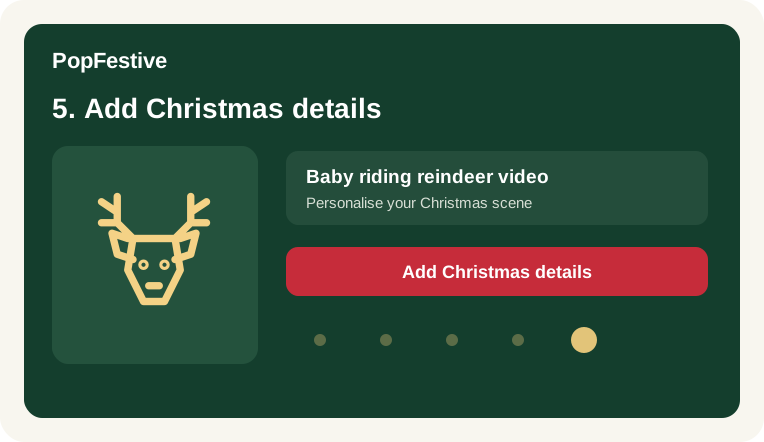
Step 5: Review the settings and prepare to create
Before tapping Create my reindeer video, check the photo, effect and name. Review the settings and credit amount before creating.
Step 6: Preview, then download
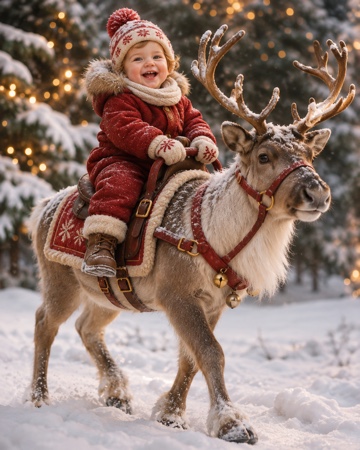
Preview the creation before downloading or sharing. The sample below illustrates the effect; it is not a result made from your uploaded photo. Example people are fictional.
Check both the cover image and, once available, the complete video. The baby’s face should stay consistent between frames; also look for unusual hands, clothing, reindeer legs or movement that changes the intended gentle mood.
How much does Baby riding reindeer cost?
Photos use Nano Banana 2 at 8 credits for 1K or 12 for 2K. Videos follow the existing Seedance model, resolution and length formula. The original credit packs and subscriptions remain available.
Troubleshooting
- The photo is not clear enough. Choose a sharper, well-lit image with the face large enough in the frame instead of adding more descriptive text.
- The subject does not look right. Review the angle and anything hiding the face; for pets, also check coat markings and use a clear photo for each animal.
- The details are wrong. Review the subject, text and framing at full size against the source photo before sharing.
- What if my creation cannot be completed? Check your photo and settings, then try again later. No credits are used when a creation cannot be started.
Keep going
- Want a personalised Santa Nice List certificate instead? Read How to Make a Santa Nice List Certificate: Step by Step (2026).
- Want a Christmas profile picture instead? Read How to Make a Christmas PFP: Step by Step (2026).
- Want a Christmas pet portrait instead? Read How to Make Christmas Pet Photos: One or Two Pets, Step by Step (2026).